

Microsoft To Do is a free task-management app designed to help you organize everyday tasks, reminders, recurring activities, and larger projects.
At first glance, the app is intentionally simple. You create a task, give it a due date, and mark it complete when you’re finished. But once you open an individual task, Microsoft To Do offers considerably more functionality.
You can add reminders, recurring schedules, smaller Steps, notes, file attachments, hashtags, and more. Your tasks can also synchronize across your phone, computer, and web browser when you use the same Microsoft account.
In this guide, we’ll go through the main features of the Microsoft To Do mobile app and also look at some of its limitations.
What Is Microsoft To Do?
Microsoft To Do is Microsoft’s task and to-do list application.
It is available on multiple platforms, including:
- iPhone and iPad
- Android
- Windows
- Mac
- Web browsers
The app uses a Microsoft account to synchronize tasks across supported devices.
Microsoft To Do is particularly useful for people who already use Microsoft services such as Outlook, since tasks and other Microsoft productivity features can work together within the same ecosystem.
The core Microsoft To Do experience is free to use with a Microsoft account.
1. Using My Day
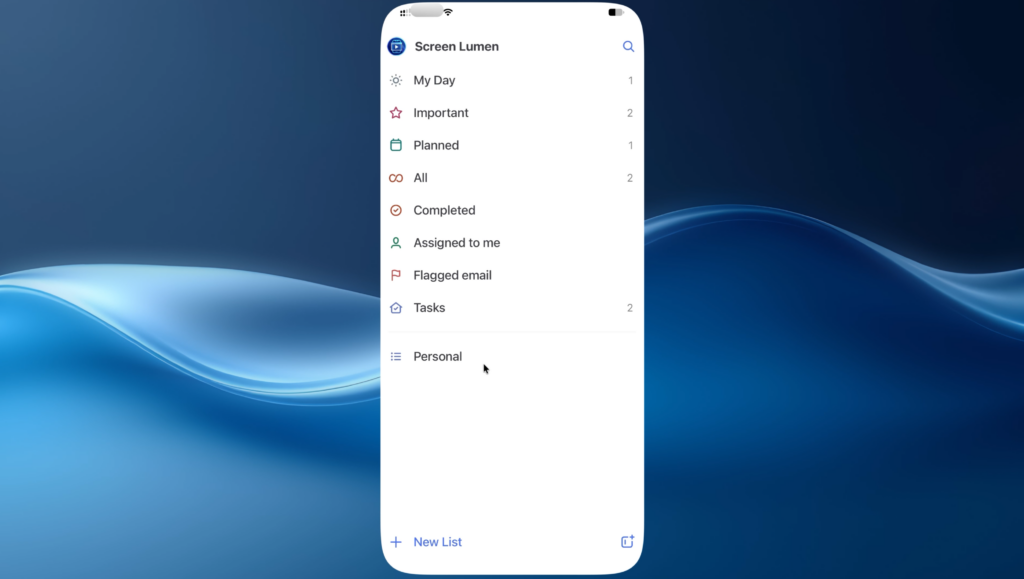
One of the main sections you’ll see when opening Microsoft To Do is My Day.
My Day is intended to be a focused list of tasks you want to work on today.
Instead of filling it with every task you’ve created, you can choose only the items that need your attention for the current day.
Adding something to My Day does not remove the task from its original list. It simply gives the task another place where you can access it.
This makes My Day useful if you have many different lists but want one simple daily view.
Other smart lists
Microsoft To Do can also display smart lists such as:
- Important
- Planned
- All
- Completed
- Assigned to me
- Flagged email
The exact options you see can depend on your account and settings.
2. Creating a Task
Creating a new task is straightforward.
Open a list or My Day and select Add a task. Enter the task name and save it.
For example:
Prepare monthly report
You can use a task by itself, but tapping it opens additional options that make Microsoft To Do much more capable.
3. Adding Due Dates
A task can have a due date.
Microsoft To Do provides quick choices such as today and tomorrow, or you can choose a specific date.
Tasks with dates can also appear in the Planned smart list.
This gives you a simple way to review upcoming work without manually creating separate lists for every day.
A due date answers:
When does this task need to be completed?
That’s different from a reminder.
4. Setting Reminders
Microsoft To Do lets you create reminders for tasks.
A reminder determines when Microsoft To Do should alert you about something.
For example, suppose a report is due on Friday.
You could set:
Due date: Friday
Reminder: Thursday at 3:00 PM
The due date tells you when the task needs to be completed, while the reminder helps make sure you don’t forget about it beforehand.
This distinction is useful for tasks that require preparation.
5. Creating Recurring Tasks
Tasks that happen repeatedly don’t need to be recreated manually every time.
Microsoft To Do supports recurring tasks.
Depending on the schedule you need, you can configure tasks to repeat using options such as:
- Daily
- Weekdays
- Weekly
- Monthly
- Yearly
- Custom schedules
Recurring tasks work well for routine activities such as:
- Paying bills
- Preparing weekly reports
- Household chores
- Regular meetings
- Monthly administrative tasks
- Personal routines
For example, you could create Pay electricity bill and make it repeat every month.
6. Breaking Tasks Into Steps
Microsoft calls its subtasks Steps.
Steps allow you to break one larger task into several smaller actions.
For example, instead of creating several separate tasks for a monthly report, you could create one main task:
Prepare monthly report
Then add Steps such as:
- Download sales data
- Reconcile figures
- Update spreadsheet
- Review final numbers
- Send report to manager
Each Step can be completed individually.
This keeps related activities grouped together instead of cluttering your main task list.
7. Adding Notes
Tasks can also contain notes.
Notes are useful when you need additional information but don’t need another actionable Step.
For example:
Use final sales figures from Finance. Attach the approved spreadsheet before sending.
You could use the notes area for:
- Instructions
- Reference information
- Addresses
- Links
- Meeting details
- Additional context
This lets you keep the task title short while storing supporting information inside the task.
8. Adding File Attachments
Microsoft To Do also supports attaching files to tasks.
This can be useful when a task is directly associated with a document or image.
For example, a task called Review monthly report could include the actual spreadsheet or document being reviewed.
Instead of locating the file somewhere else later, you can keep the relevant material associated with the task.
For larger or more complex document workflows, however, dedicated file-management tools such as OneDrive may still be more appropriate.
9. Marking Tasks as Important
Microsoft To Do lets you mark a task as Important using the star icon.
Important tasks then appear in the Important smart list.
This is useful, but there is an important limitation.
Microsoft To Do does not provide a detailed priority system with levels such as:
- Low
- Medium
- High
Instead, priority is essentially divided into two states:
Normal or Important
For people who need several priority levels, this may feel limited compared with more advanced project-management applications.
10. Organizing Tasks With Hashtags
Microsoft To Do supports simple tags through hashtags.
For example:
Prepare monthly report #work
The #work portion can help group and find related tasks.
You might use hashtags such as:
#work#personal#shopping#travel
This isn’t as sophisticated as a dedicated tagging system, but it provides another way to organize tasks that may exist across different lists.
11. Creating Lists
Lists provide the main organizational structure in Microsoft To Do.
You might create lists such as:
- Work
- Personal
- Shopping
- Home
- Travel
For example, a Work list could contain:
- Prepare monthly report
- Review expense claims
- Team meeting
- Submit reimbursement
Meanwhile, a Personal list might include appointments, errands, bills, and other activities.
A simple way to think about Microsoft To Do’s organization is:
Lists → broad groups
Tasks → individual activities
Steps → smaller actions inside a task
Hashtags → additional cross-list organization
12. Searching Your Tasks
Microsoft To Do includes search functionality.
Search becomes increasingly important as you accumulate more lists, notes, and completed tasks.
Instead of manually opening each list, you can search for terms associated with the task you’re trying to find.
Hashtags can also make searches easier when you’ve used a consistent tagging system.
13. Cross-Device Syncing
One of Microsoft To Do’s strongest features is synchronization.
When you’re signed in with the same Microsoft account, your tasks can be available across supported devices.
For example, you could:
- Create a task on your phone.
- Continue working with it on your computer.
- Check it later from a web browser.
- Mark it complete from another device.
For users who switch between phones and computers throughout the day, this is significantly more convenient than maintaining a task list on only one device.
14. Microsoft To Do and Outlook
Microsoft To Do is closely connected to Microsoft’s broader productivity ecosystem.
This is particularly relevant for Outlook users.
For example, Microsoft can surface Outlook-related tasks and flagged email within its task-management experience.
The integration makes Microsoft To Do more attractive if you’re already using Microsoft services for email, calendars, documents, and work.
15. Does Microsoft To Do Have a Calendar View?
Not exactly.
The mobile To Do app does not provide the type of full monthly calendar interface found in some task-management applications.
Instead, tasks with dates can be reviewed through features such as the Planned list.
Microsoft’s Outlook ecosystem provides additional calendar functionality, but Microsoft To Do itself remains primarily a list-based task manager.
If a visual monthly task calendar is essential to your workflow, this is one of the application’s more noticeable limitations.
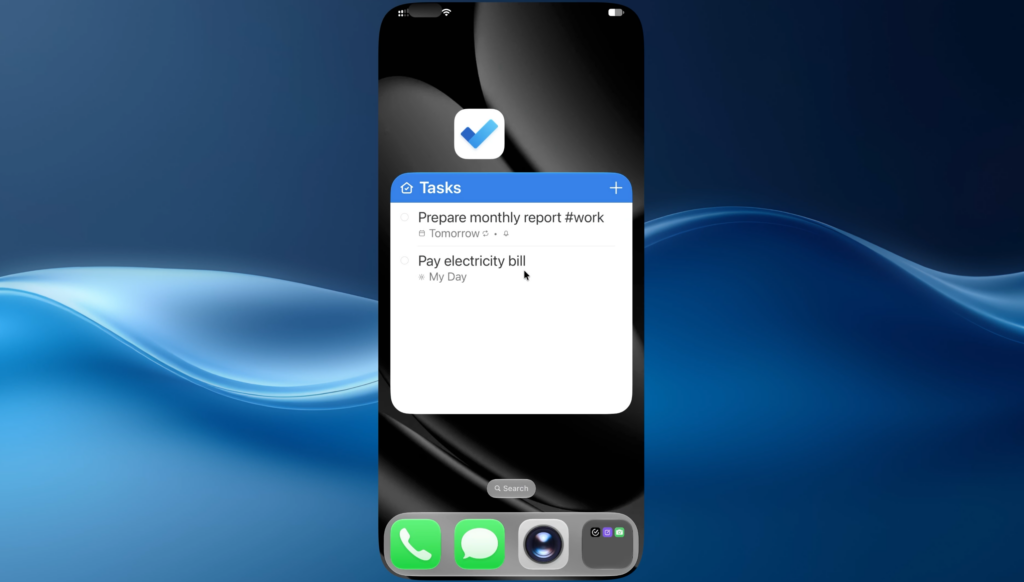
16. Microsoft To Do Widgets
Microsoft To Do supports mobile widgets.
Widgets can place task information directly on your phone’s home screen, reducing the need to open the entire app whenever you want to check your tasks.
Depending on your device and widget configuration, this can make frequently used lists much quicker to access.
17. Can Microsoft To Do Work Offline?
Microsoft To Do can still be useful when you temporarily don’t have an internet connection.
Your Microsoft account and internet connection become important for synchronization between devices and Microsoft’s online services.
For most everyday use, this means losing connectivity doesn’t necessarily prevent you from checking or working with your existing task list.
18. Can You Export Microsoft To Do Data?
This is one of Microsoft To Do’s weaker areas.
The mobile app does not provide a simple button for exporting all your To Do information to a common format such as CSV.
Because To Do is integrated with Microsoft’s broader account and Outlook infrastructure, there are desktop-based ways of exporting Microsoft information, but they are less convenient than a dedicated export feature built directly into the mobile app.
If easy data portability is a priority for you, this is worth considering before making To Do your long-term task database.
19. Can You Delete a Microsoft To Do Account?
Microsoft To Do doesn’t use a completely separate account.
Instead, you sign in with a Microsoft account.
That distinction matters because closing your Microsoft account can affect other Microsoft services associated with it.
So if your goal is simply to stop using Microsoft To Do, you generally don’t need to delete your entire Microsoft account.
20. Is Microsoft To Do Free?
For personal users, the main Microsoft To Do task-management features can be used without paying for a separate To Do subscription.
That includes many of the features covered here:
- Tasks
- Due dates
- Reminders
- Recurring tasks
- Steps
- Notes
- Attachments
- Important tasks
- Lists
- Search
- Widgets
- Cross-device synchronization
This makes Microsoft To Do particularly attractive to users who want a capable task manager without another recurring subscription.
Disclosure
Screenlumen is an independent educational website and is not affiliated with or endorsed by Microsoft. Product names, logos, and trademarks belong to their respective owners.