
Managing daily responsibilities doesn’t have to be complicated. Whether you’re keeping track of household chores, planning a trip, remembering bills, or organizing work assignments, a simple to-do list can make a difference.
Google Tasks is a free task management app that helps you organize your responsibilities, set reminders, and keep track of what needs to be done.
One of its biggest advantages is its integration with Google’s other services, particularly Gmail and Google Calendar.
In this beginner-friendly guide, we’ll walk through the main features of the Google Tasks mobile app, explain how to use them, and discuss some important limitations you should know about.
What Is Google Tasks?
Google Tasks is a task management application developed by Google. It’s designed to help users create, organize, and complete everyday tasks without the complexity of more advanced project management tools.
The app is available for Android and iOS devices. You can also access your tasks through Google Tasks on the web or within supported Google Workspace applications.
With Google Tasks, you can:
- Create and manage to-do lists.
- Set dates, times, and reminders.
- Schedule repeating tasks.
- Divide larger tasks into subtasks.
- Add notes and descriptions.
- Organize tasks into different lists.
- Mark important tasks with stars.
- Access your tasks across multiple devices.
- View scheduled tasks in Google Calendar.
The interface is intentionally simple, making it suitable for beginners and anyone who prefers a straightforward task manager.
Is Google Tasks Free?
Yes. Google Tasks is free to use with a regular Google Account.
You don’t need to purchase a subscription to use its standard task management features, including reminders, recurring tasks, subtasks, and multiple lists.
You can download the app from the Google Play Store or Apple App Store.
1. How to Create a Task in Google Tasks
Creating a task takes only a few steps.
- Open the Google Tasks app.
- Tap the Add Task (+) button.
- Enter the name of your task.
- Add any optional information.
- Tap Save.
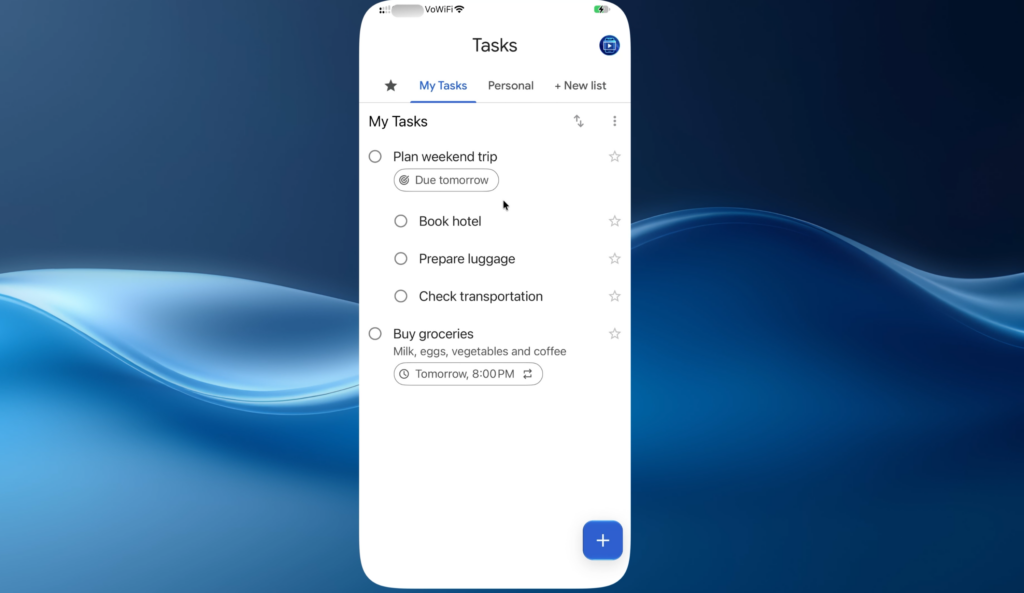
For example, suppose you need to buy groceries.
You can create a task named Buy groceries.
If you don’t need additional information, you can save it immediately. However, you can also include details, scheduled dates, and reminders.
Tip: Use specific task names. Instead of writing “Shopping,” try “Buy groceries for the weekend.” A descriptive name makes your list easier to understand at a glance.
2. How to Add Notes or Details
Sometimes, a task title isn’t enough.
Google Tasks includes a Details field where you can add additional information.
For example, under the task Buy groceries, you might enter:
Milk, eggs, vegetables, and coffee.
To add details:
- Open an existing task or create a new one.
- Tap the Details field.
- Type your notes.
- Save your changes.
The Details field is useful for shopping lists, instructions, reference information, and simple checklists.
However, it’s primarily intended for plain-text descriptions rather than advanced note-taking.
3. How to Set Dates, Times, and Reminders
Google Tasks allows you to schedule tasks for specific dates and times.
This feature is useful for appointments, upcoming deadlines, bill payments, and other responsibilities you don’t want to forget.
To schedule a task:
- Open the task you want to schedule.
- Select the date and time option.
- Choose your preferred date.
- Set a time if needed.
- Save your changes.
For example, you could schedule Buy groceries for tomorrow at 8:00 PM.
Google Tasks can then remind you when the scheduled time arrives, provided the necessary notifications are enabled.
Tasks with dates also appear in Google Calendar.
Important: If you aren’t receiving reminders, check your phone’s notification permissions for Google Tasks or Google Calendar. The app needs the appropriate permissions to send notifications.
4. How to Create Recurring Tasks
Some responsibilities happen regularly.
You might need to pay your electricity bill every month, prepare a weekly report, or review your schedule every morning.
Instead of manually creating the same task repeatedly, Google Tasks supports recurring tasks.
To create one:
- Open a task.
- Tap the date and time settings.
- Choose the Repeat option.
- Select a frequency, such as daily, weekly, monthly, or yearly.
- Customize the schedule if necessary.
- Save the task.
For example, create a task named Pay electricity bill and set it to repeat monthly.
This helps you maintain recurring responsibilities without continually adding new entries.
Limitation: Google Tasks does not allow tasks containing subtasks to repeat. If you need a recurring checklist with multiple steps, you may have to create separate recurring tasks instead.
5. How to Create Subtasks
Not every task can be completed in a single step.
For more complicated activities, Google Tasks lets you break a main task into smaller subtasks.
Let’s say you’re planning a weekend trip.
You could create a main task called Plan weekend trip with these subtasks:
- Book hotel
- Prepare luggage
- Check transportation
To add subtasks:
- Create or open a task.
- Select Add Subtask.
- Enter the first subtask.
- Repeat for any additional steps.
You can mark subtasks as complete individually.
This is particularly useful for activities requiring several steps, such as preparing for travel, organizing events, or completing small projects.
Keeping related actions grouped under one main task can make your to-do list easier to manage.
6. How to Organize Tasks Using Lists
As your number of tasks grows, keeping everything in one list may become difficult.
Google Tasks provides multiple Lists to help you organize responsibilities by category or purpose.
For example, you could create separate lists named:
- Personal
- Work
- Shopping
- Travel
To create a new list:
- Open the Google Tasks app.
- Navigate to the list selector or New List option.
- Enter a name.
- Save the new list.
You can also move existing tasks between lists.
Lists are useful for separating different areas of your life without needing additional applications.
Unlike some advanced productivity tools, Google Tasks doesn’t provide conventional tags or labels. Lists serve as its primary method of categorization.
7. How to Prioritize Tasks Using Stars
Google Tasks doesn’t use traditional priority levels such as High, Medium, and Low.
Instead, it lets you mark important tasks with a star.
To star a task:
- Find the task you want to prioritize.
- Tap the star icon beside it.
- Open the Starred section to view your important tasks.
For example, if you have several responsibilities but must pay an electricity bill today, you can star that task to make it easier to find.
This is a basic prioritization system, but it works well for users who don’t need elaborate priority categories.
You can also manually rearrange tasks within lists using supported sorting options.
8. How to Edit, Complete, or Delete Tasks
Managing existing tasks is straightforward.
Editing a task
Open the task you want to modify. You can update its title, details, scheduled date, and other available settings.
Completing a task
Tap the circle beside a task to mark it as completed.
Completed tasks can still be viewed in the Completed section, allowing you to review what you’ve finished.
Deleting a task
Open the task and select the Delete option.
Deleting a task removes it from your list. Make sure you no longer need the information before deleting it.
9. How Google Tasks Works With Google Calendar
One of Google Tasks’ most useful features is its integration with Google Calendar.
When you assign a date to a task, it can automatically appear on your calendar.
For example, suppose you’ve scheduled:
Buy groceries — Tomorrow at 8:00 PM
You can open Google Calendar and find that task on its scheduled date.
From Calendar, you can also manage scheduled tasks without always switching back to the dedicated Tasks app.
This integration is especially convenient if you already use Google Calendar for appointments, meetings, and other events.
It helps you see scheduled responsibilities alongside your other commitments.
10. Does Google Tasks Support Attachments?
Google Tasks supports Google Drive attachments through Google Calendar, but attachment options are more limited than those in some dedicated task management applications.
You generally won’t find a conventional file attachment button in the main Google Tasks mobile task editor.
On supported versions of Google Calendar, you can add Google Drive files to tasks.
For example, you might attach a document containing instructions or reference material to a work-related task.
Google currently supports up to 25 Google Drive attachments per task.
This is useful, although the process is less direct than simply attaching a file inside the Google Tasks mobile app.
11. How to Add a Google Tasks Widget
Google Tasks supports home-screen widgets on compatible Android devices, iPhones, and iPads.
Widgets allow you to access task information without opening the full application.
On iPhone
- Touch and hold an empty area on your Home Screen.
- Open the widget selection interface.
- Search for Google Tasks.
- Choose your preferred widget size.
- Add the widget to your Home Screen.
On Android
- Touch and hold an empty area on your Home Screen.
- Select Widgets.
- Find Google Tasks.
- Choose an available widget.
- Position it on your Home Screen.
The available widget sizes and features may vary depending on your device.
Widgets are useful if you prefer seeing your upcoming responsibilities whenever you unlock your phone.
12. Does Google Tasks Sync Across Devices?
Yes. Google Tasks uses your Google Account to synchronize your task lists across supported devices.
For example, you can create a task on your iPhone and later access it from your computer.
You can also manage tasks using Google services such as Gmail and Calendar.
To keep your tasks synchronized, make sure you’re signed in to the same Google Account on your devices and that they can connect to the internet.
This makes Google Tasks convenient for people who frequently move between smartphones, tablets, and computers.
13. How to Export Google Tasks Data
Google Tasks supports exporting your data, although the feature isn’t available as a simple Export button inside the mobile app.
Instead, you can use Google Takeout.
To export your data:
- Open Google Takeout.
- Sign in to your Google Account.
- Select the data you want to download, including Google Tasks.
- Continue to the export settings.
- Choose your delivery and archive options.
- Create the export.
Google will prepare an archive containing the selected information.
Keep in mind that exporting your data isn’t the same as having a built-in backup-and-restore feature inside Google Tasks.
14. What Features Are Missing From Google Tasks?
Although Google Tasks handles the basics well, it may feel limited compared with more advanced to-do applications.
Here are some of its main limitations.
No traditional priority levels
You can star important tasks, but there isn’t a conventional High, Medium, or Low priority system.
No dedicated tags or labels
You can organize tasks into lists, but you can’t use a full tagging system to classify the same task in multiple ways.
No built-in task search in the mobile app
Google Tasks has historically lacked a dedicated search function for finding tasks by keyword.
This can make locating older tasks inconvenient when your lists become large.
On a computer, a partial workaround is to open Google Tasks in a browser and use the browser’s Find function.
Limited attachment workflow
Google Drive attachments are supported through Google Calendar, but adding attachments isn’t as straightforward as it is in some competing apps.
Limited built-in text customization
Google Tasks doesn’t provide its own extensive font-size controls. Users who need larger text generally need to adjust their phone’s display or accessibility settings.
These limitations matter more for users managing hundreds of tasks or complicated projects.
For simple everyday reminders, however, they may not be major concerns.
Final Thoughts: Is Google Tasks Worth Using?
Google Tasks is a practical choice for anyone who wants to manage everyday responsibilities without learning a complicated system.
Its strengths include a simple interface, free access, reminders, recurring tasks, subtasks, and synchronization across devices.
Integration with Google Calendar is another advantage, especially for users who already rely on Google’s productivity services.
However, it isn’t a complete solution for every productivity requirement. Features such as traditional priority levels, extensive tagging, and more convenient attachments are still limited or missing.
If you want a straightforward app to track personal responsibilities, shopping lists, and everyday reminders, Google Tasks is worth considering.
And if you’re already using Google Calendar and Gmail, it may fit naturally into your existing workflow.
Watch Our Google Tasks Mobile Tutorial
Prefer watching instead of reading?
Our step-by-step Google Tasks mobile tutorial demonstrates the features covered in this guide, from creating your first task to managing recurring reminders, subtasks, and lists.
For more practical app walkthroughs and easy-to-follow software guides, explore our other tutorials here at Screenlumen.
This guide reflects Google Tasks features available as of October 2026. App interfaces and features may change with future updates.